HOWTO: Authenticate to PeeringDB
This article explains the authentication mechanisms we offer. It also explains how organizations can apply policies for their affiliated users.
Why authenticate?
You don't need to login to make single queries to PeeringDB. But some features do require you to authenticate.
Update the database
If you want to make updates then you need to authenticate. You can update PeeringDB via the API if you want. So you can either login to the website to make changes, or automate them with tools if you prefer.
Access contact data
We encourage you to publish contact information for your facility, IXP, or network. You can choose to make contact information public but many organizations limit it to other PeeringDB users. So you’ll need to authenticate if you want access to most contact information.
Higher query limits
Authenticated users are allowed more frequent API queries. They are also able to repeat an identical API query more frequently without being throttled.
Help PeeringDB’s operations team
If you authenticate when you send queries, we can contact you if your PeeringDB use starts to cause an unexpected problem. If you don’t authenticate then all we can do is restrict queries from your IP address.
Password
You must set a password.
Passwords must be at least 10 characters long and must not exceed 1,000 characters.
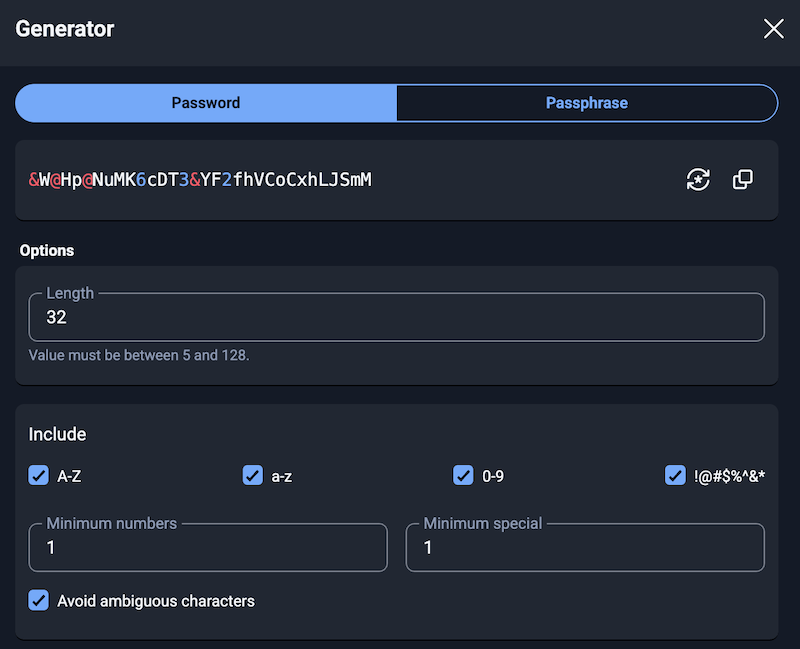
We recommend using a randomly generated password or passphrase.
Multi-factor authentication (MFA)
MFA is mandatory: you must have a second factor configured to log in to PeeringDB.
We support three MFA methods. You can use:
You can choose to have more than one second factor configured.
Setting up your second factor
Go to your profile and click "Manage Multi-factor Authentication" under Account Security.
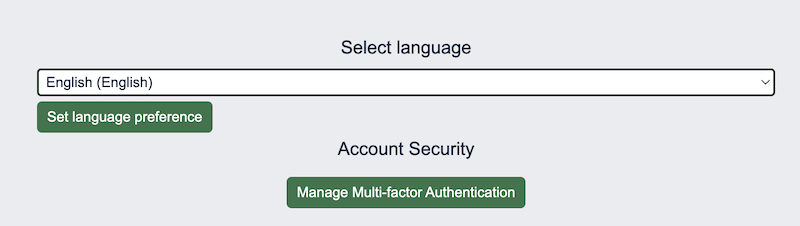
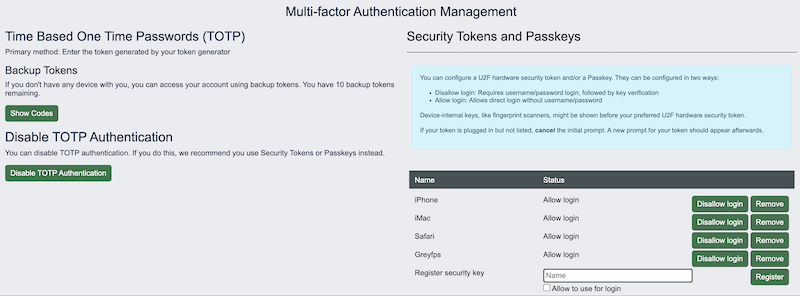
From there you can set up a TOTP app, register U2F hardware tokens or Passkeys, and manage the factors you've already configured. You can also download and securely store backup codes, in case a second factor is destroyed.
Requiring MFA for your organization
Organization admins can require everyone affiliated with their organization to enable 2FA. This option is on the Users tab of your organization's Manage page.

Account recovery
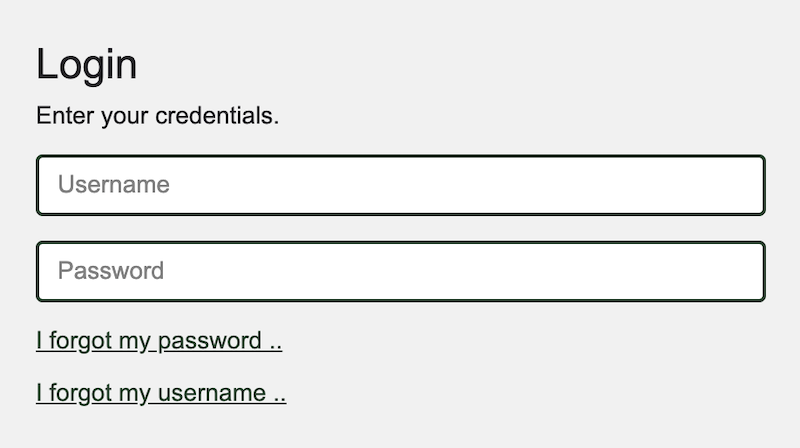
You can recover your account if you forget your username or password. Just go to the login screen and click on the relevant link. An account recovery message will be mailed to you.
Organization affiliation & admin succession
RDAP email verification
When you request to affiliate with an organization that doesn't yet have an admin, PeeringDB looks up the ASN's registration data via RDAP at the relevant Regional Internet Registry (RIPE, ARIN, APNIC, LACNIC, or AFRINIC). If the email address on your PeeringDB account matches one of the email addresses published in that RDAP record, your affiliation request is approved automatically.
If your account email doesn't match, add the RIR-registered address as a secondary email on your profile rather than switching your primary login email. Secondary emails are checked during the same automated match, so this is usually the fastest way to unblock an affiliation request without waiting on PeeringDB Support.
Claiming admin rights for an existing organization
If your organization already has a net, ix, fac, or carrier record in PeeringDB but you can't reach its existing admins — for example, after staff turnover or an ASN acquisition — you have two options:
- Ask a current admin to affiliate you and grant admin rights, if you can identify and reach one through your organization's own records.
- If no admin can be reached, contact PeeringDB Support with proof that ties you to the organization. An email address matching the RDAP/WHOIS record for the ASN is the fastest path, since it lets support verify the request the same way automated affiliation does. For ASN acquisitions, include the RIR transfer confirmation showing the ASN now belongs to your organization.
If the acquired organization's admins are still active and simply want to hand off management voluntarily, see the Mergers and Acquisitions FAQ instead.
OAuth
Some external services allow or require you to authenticate using your PeeringDB account. One example is networks' peering portals. They might use PeeringDB's OAuth service to ensure they can automate configuration.
We have a guide to implementing PeeringDB's OAuth service for your application.
Automating PeeringDB access
API keys
We support both user and organizational API keys. You should use organizational API keys when you don't want to tie your application to an individual.
We have a detailed guide on how to create, configure, and use API keys.
Authentication HTTP header
The HTTP authentication header must use the same character set the connection is using.
This example shows a request and HTTP response:
$ curl -v -sG https://www.peeringdb.com/api/net/416 -H 'Authorization: Api-Key example.valid_apikey' 2>&1 | grep \<\ HTTP
< HTTP/2 200
This example shows what happens if the API key is not authorized:
$ curl -v -sG https://www.peeringdb.com/api/net/416 -H 'Authorization: Api-Key example.invalid_apikey' 2>&1 | grep \<\ HTTP
< HTTP/2 401
Canonical URL
The canonical URL for PeeringDB is https://www.peeringdb.com. There is a redirect from https://peeringdb.com but we strongly encourage use of the canonical URL since industry practice in software packages is to drop the authentication header upon redirect, as a safety precaution.
Password authentication
Using an API key for command line access is simple and more secure. Our guide on API keys explains how to create and manage keys, including setting read-only permissions, with examples.
Improving this HOWTO
Please let us know how we could improve this article. Send a mail to the Outreach Committee.